What Can Copilot Do? Exploring Functional Scenarios
Explore how Microsoft Copilot supports IT and Marketing teams with real-world scenarios, helping automate tasks, analyse data, create content, and accelerate project delivery.
7 May 2025
News
Discover how our consultancy team uses Microsoft Copilot across Outlook, Teams, Excel, Word and more to streamline workflows, boost productivity, and deliver high-quality client engagements.

My consultancy team and I utilise Microsoft Copilot in our day-to-day activities and have been doing so since it released.
In this time, we have significantly increased our throughput of work, saving ourselves days of time across each month to enable us to get through other tasks and deliver more successful consultancy engagements with our clients.
In this blog, I would like to highlight our different ways of working that touch upon all the various Microsoft products that are integrated within Copilot.
Our story follows the end-to-end consultancy workshop process, which is triggered via the Sales Team reaching out with details of a new workshop ready to be planned in.
Workshops are arranged in the diary, and then delivered, with a number of these held remotely and recorded on Microsoft Teams.
Transcripts, notes and data is captured during these sessions, with these being analysed via the various Copilot tools e.g. Copilot in Excel.
Finally, all of our data and findings are transitioned into Word to enable the creation of a proposal to be shared with our customer, with the ability to also build presentations around this as needed to aid the handover.
Please note that all prompts used are stored within our internal Prompts Library, providing the Consultants with the ability to copy and paste reusable prompts during the process, saving more time on retyping where possible.

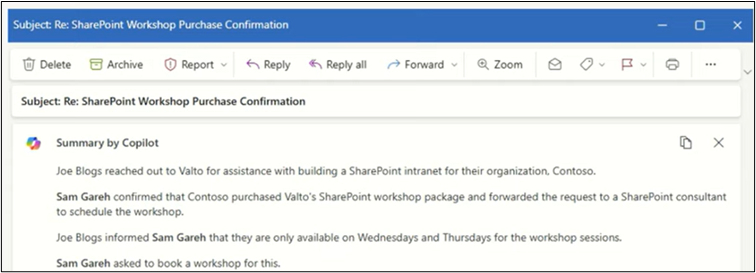
We start the journey in Outlook, in which we may have a number of emails in a chain that we have been looped into.
This is where the “Summary by Copilot” feature supports us in understanding what is being discussed, saving time usually spent trawling through large emails.
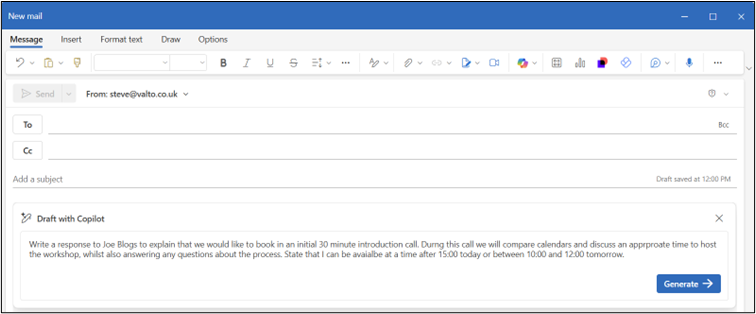
Now that I understand the email chain, I can put together a response.
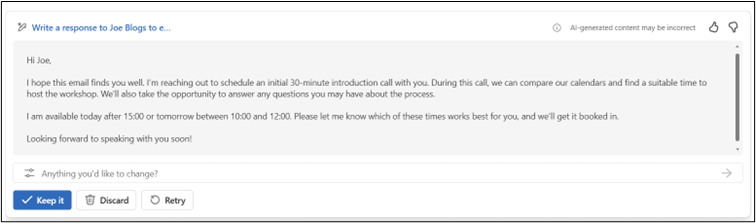
This is the time to use Outlooks “Draft with Copilot” feature, saving time generating a professional email response.
This approach can continue to be used, until a date is agreed and confirmed in diaries. We then proceed to conducting the Workshop.
Several workshops include users from across multiple locations, taking into consideration different offices, partners and hybrid working approaches.
It is for this reason why a large number continue to be delivered remotely via Microsoft Teams. This approach also provides Copilot in Teams functionality to support.
We utilise Copilot as another member of our Consultancy Team, as it will continue to listen to the meeting but also answer questions or suggest topics to discuss, based on what it has heard and understood about discussions so far.
Copilot also acts as a note taker within the meeting, capturing the full transcript of what has been said and by who.
This is then nicely presented within a Teams Recap display, and allows for further interrogation such as “Who was present in the meeting and what were their job roles?”, “What was the core objective from the organisation?”, “What user stories and journeys are needed to achieve a successful project?”.
Questions can also be defined to understand the room more clearly e.g. “What did Joe Bloggs think about the use of Dataverse?”, “What was the level of excitement like when demonstrating Power Bi?”.
These sorts of questions aid in our consultant’s decision making, understanding what was liked and disliked and which areas may require further definition etc…
This feature enables our consultants to ensure they are more engaged throughout the session and reduces the risk of missing any key points, with the outputs also usable when collating into the final proposal document.


During our workshop delivery the consultants would rely upon Microsoft OneNote to capture their notes, as this kept things nicely organised e.g. a client notebook, with multiple tabs per meeting or per project etc…
Our use of OneNote has not completely ben removed, as we still do capture our own notes during sessions as required but also combine these with the notes and transcripts taken from Microsoft Teams.
Luckily for us Microsoft Copilot is also integrated within One Note, allowing another range of features to be utilised to ensure we save time and provide the best client delivery experience.
As an example, we can ask Copilot questions about the notes, or ask it to generate content, such as a to-do list:
Analysing the notes further within OneNote essentially acts as a draft space to start generating ideas and recommendations in preparation for creating the official proposal documents.
Consultants may also need to analyse data that have been provided to them, this may include exports of data set from existing solutions that are looking to replace, or potentially data already stored within Microsoft Excel that they work with currently, but will be moving across to Dataverse and integrating within a Model Driven Application.
Copilot for Excel allows my team to question the data for answers, request support in creating particular formulas for calculations or create graphical visualisations on the data for reporting needs to be shared within the final proposal e.g. price comparisons.
Excel is also used by consultants to provide data relating to Intranet and Modern Workplace builds, namely the site structure inclusive of Hub Sites, Communication Sites, Team Sites, Permissions etc…
This content can, at times, be difficult for our customers to consume or understand in just tables.
Therefore, the ability to interrogate the data and create visualisations can help provide additional clarity within our reports.


As mentioned, all of the work that is done by the consultancy team is to prepare for a documented proposal which outlines recommendations for our clients to adopt various Microsoft technologies and digitally transform their organisation. This is where Copilot in Word is a great help in piecing together ideas, notes, research and data together to speed up this process. It should be noted that as with all the Copilot tools in use, this is not replacing the human element but just supporting them and enhancing what they deliver. This is most prominent within Microsoft Word, as my team know to always check anything created by AI for accuracy and ensure that they use it to boost productivity but not replace them in the process. Initially we create content based on the various different files that are stored, this will come from One Note and Excel as defined earlier in the blog post. Copilot also allows us to adjust the look and feel of the document, using other materials and templates as a guide. Once again this is achieved by simply asking Copilot to change the look and feel, whilst giving it the reference materials. Perhaps I want to add an executive summary at the start of the document, or I want to add a table which compares the feature sets of some proposed third party solutions, well all of this is achievable through well written Copilot prompts and finalised with standard reviewing and rewriting where required. A final step used during our document review cycle is to instruct Copilot to take on a specific persona and review the document e.g. “You are an IT Manager, interested in digitally transforming the communications within your retail business through the use of SharePoint and Microsoft Teams. Please read through this proposal and provide feedback, raise any key questions that are unanswered and provide suggestions of anything that is missing that would influence your decision.” This approach allows my team to replicate a review cycle via AI and make amendments before it is provided to my client. Another great feature of Copilot that helps the team provide documents to the highest quality that we expect within our work. Continuing with the process of prompting, reviewing, rewriting and reworking we can get the document into a finalised state and send it over to my client.
The final tool within our journey to look at is Copilot in PowerPoint. Much like Microsoft Word, this tool is used to aid in the generation of materials to ensure we can provide additional handover materials as requested by our clients – typically in response to tenders.
Earlier we saw that Copilit can point towards documents, such as notes in One Note.
The same applies to Copilot in PowerPoint, however in this scenario we have used our notes, files, analytical data and research to create a Workshop Report.
Therefore, we now use the finalised report as the basis of the PowerPoint presentation, as ask Copilot to create the slides and structure for this to be presented.
As with Microsoft Word, the content will need to be reviewed, and some slides may need to be removed or consolidated.
However, as a first attempt having 20 to 30 slides generated within 2 to 3 minutes is a great time saver and help tackle the initial block when staring at a blank new document.
Another element to improve the presentation is the theming and styling that is applied. Once again Copilot can assist with this, for example you may ask it to “please change all the fonts from X to Y” and it will do this for you, much faster than manually doing it on each slide.

In summary, all the tools within the Microsoft Office Suite that me and my team use day to day include Microsoft Copilot integration that support us in delivering quality responses to our Workshops.
Microsoft Copilot is also a great time saver whilst, summarising emails, writing notes, analysing data, structure documents and building presentations.
As previously mentioned, my team is saving days of time each month through effective use of these tools.
As an organisation we are then able to look at the amount of days saved in total across all functions and equate that into cost savings for the organisation and attribute that cost into other areas to grow.
Therefore, the pay back from purchasing Microsoft Copilot licenses is huge, and the business case practically writes itself! (Literally!).
A great starting point is to work with Valto in completing our free Microsoft Copilot Assessment.
This 40-point check will evaluate your organization’s AI adoption and readiness, providing recommendations for security and setup.
If you need assistance with Microsoft Copilot, have any questions, or wish to take advantage of our free Microsoft Copilot assessment, please contact us. We’re here to help you through your AI journey.
“We work with organisations across many sectors of different shapes and sizes from 10 to 100,000 employees.”
Contact our team today!

Explore how Microsoft Copilot supports IT and Marketing teams with real-world scenarios, helping automate tasks, analyse data, create content, and accelerate project delivery.
7 May 2025

Learn the key differences between Microsoft Copilot’s free and paid versions, including features, use cases, pricing, and how to boost productivity with the right setup.
7 May 2025

Not sure whether to choose Copilot Studio or Azure AI Foundry? Discover the key differences, real-world use cases and decision-making criteria to help you select the right Microsoft AI platform for your organisation.
12 August 2026