NewsOffice365
New Microsoft AI tools just announced at Microsoft Build 2025
All NEW Microsoft AI tools announced at Microsoft Build 2025 . Discover Microsoft CEO's AI vision to scale businesses with AI Chatbot Agents.
23 May 2025

News
In this article we will demonstrate how you can add a PowerApp into a Microsoft Team. This article is part of an ongoing series of video demonstrations to show you how to create your own Power App.
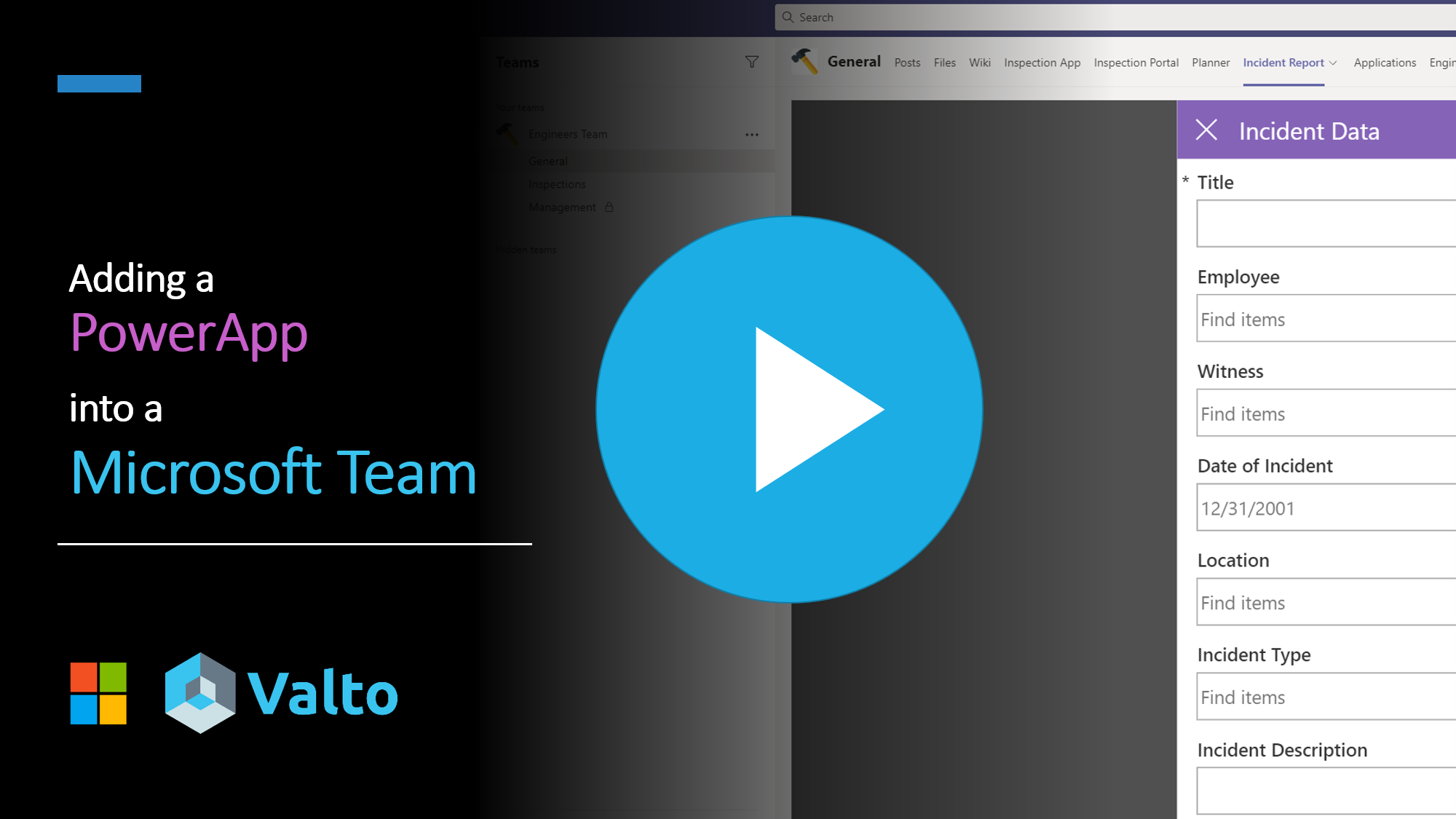
In this article we will demonstrate how you can add a PowerApp into a Microsoft Team.
This article is part of an ongoing series of video demonstrations to show you how to create your own Power App.
The series will show you from the start of the process how you can create Canvas PowerApp, integrate Power Automate related workflows. Then once the app is finished sharing it with a wider auidence by embedding it into your Microsoft Team.
PowerApps are a great way to digitally transform paper-based processes that you would usually work on with Team members.
You can watch the full demonstration video on YouTube of how to achieve this by clicking on the image below.
Video and article by: [email protected]
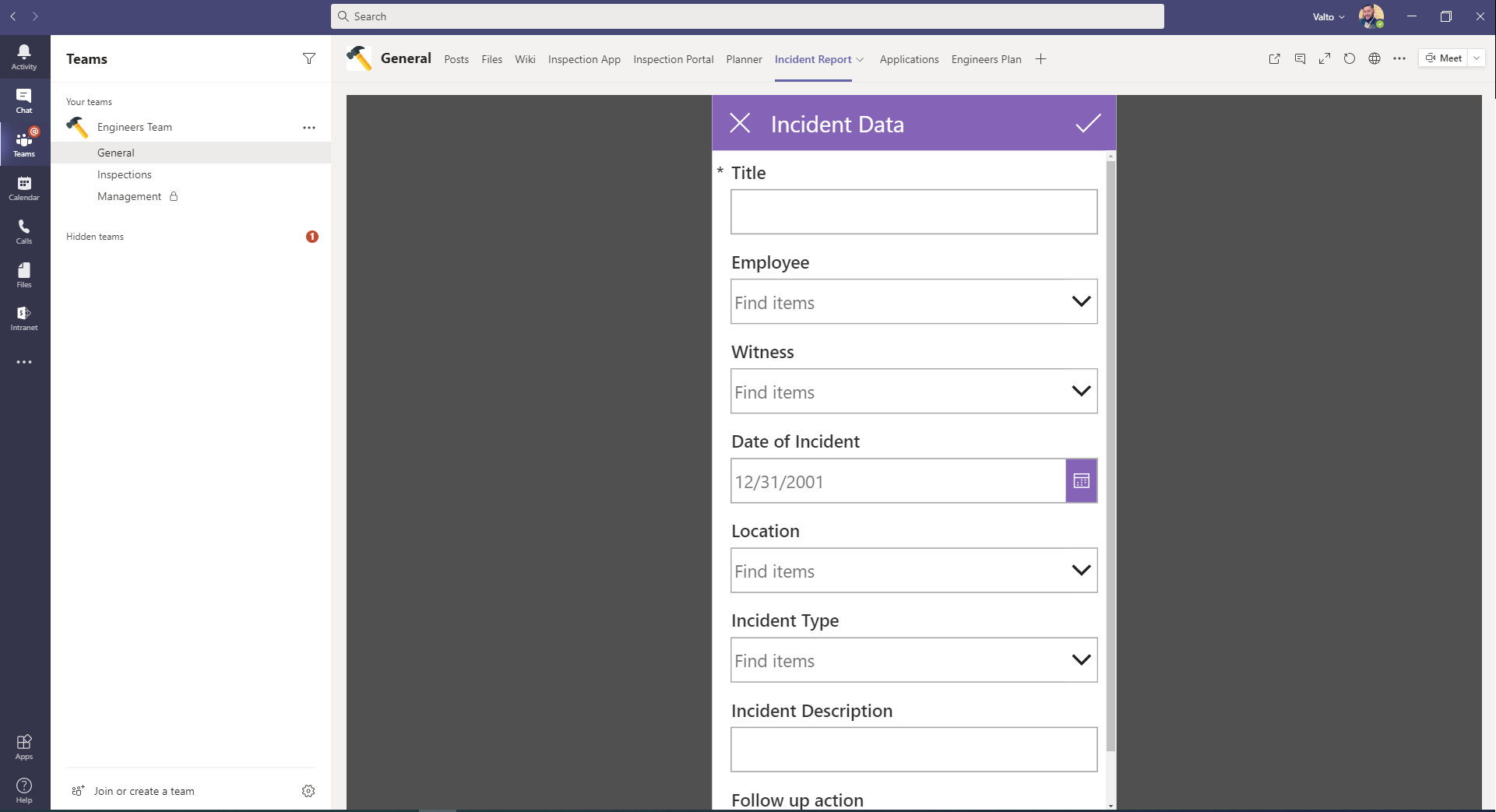
In our example we are replacing an Incident Reporting paper-based process with a Power App. Then sharing with our team to make it easy for any Team member to be able to raise an incident report.
This same process could be used to create any number of Microsoft Canvas PowerApps to replace legacy processes thus improving overall efficiency within your team.
You might wish to replace an old spreadsheet that is tracking holiday requests or perhaps your have a clunky shift rota that needs modernizing.
Once you have created your Canvas PowerApp and given the relevant members of your Team access you should consider how these users of the application will want to access it on a day-to-day basis.
They could access the PowerApp via a hyperlink that you have emailed to them or placed on your SharePoint intranet. They could also choose to access the application via the PowerApps mobile app on their phones or tablets.
However, keeping with Microsoft’s approach of using Microsoft Teams as a “One Stop Shop” for your team to be able to access all of the resources they require for their job, adding an additional tab within your Microsoft Team for your PowerApp makes the most sense.
Once you have your PowerApp is embedded into your Microsoft Team as a tab, it will make it even quicker and simpler for your team members to be able to access and submit information.
Catch up on our ‘create your own Power Apps series’ with our videos below.
Watch the video (opens in a new tab)&list=PLU0l_OdIOEMF4WiiDFIq_hil-Es9l4eCZ&index=8
Watch the video (opens in a new tab)&list=PLU0l_OdIOEMF4WiiDFIq_hil-Es9l4eCZ&index=7&t=6s
Watch the video (opens in a new tab)&list=PLU0l_OdIOEMF4WiiDFIq_hil-Es9l4eCZ&index=6&t=1s
Watch the video (opens in a new tab)&list=PLU0l_OdIOEMF4WiiDFIq_hil-Es9l4eCZ&index=5&t=4s
Watch the video (opens in a new tab)&list=PLU0l_OdIOEMF4WiiDFIq_hil-Es9l4eCZ&index=4&t=3s
Watch the video (opens in a new tab)&list=PLU0l_OdIOEMF4WiiDFIq_hil-Es9l4eCZ&index=3&t=7s
Watch the video (opens in a new tab)&list=PLU0l_OdIOEMF4WiiDFIq_hil-Es9l4eCZ&index=2&t=5s
Watch the video (opens in a new tab)&list=PLU0l_OdIOEMF4WiiDFIq_hil-Es9l4eCZ&index=1
Download your copy of our recent whitepaper “Power Apps Governance Strategy”.
If you would like more information in regards to getting started with PowerApps then please download the whitepaper below.
We collect your name and email only to send you a link to download the whitepaper. This information is not shared or sold. We may also contact you for feedback.
Valto also host free web seminars, which on occasion, you will be invited to. You can unsubscribe at any time.
To download the whitepaper please fill in the contact form below and you will be emailed a link to download the file.
I hope you found this information useful, if you have any questions regarding Power Apps, Power Automate, Microsoft Teams, SharePoint or Office 365 please do not hesitate to contact me.
Dougie Wood
Solutions Architect
All NEW Microsoft AI tools announced at Microsoft Build 2025 . Discover Microsoft CEO's AI vision to scale businesses with AI Chatbot Agents.
23 May 2025
Explore how SMEs can use Microsoft Model-Driven Apps to create affordable, custom CRM-like systems. Learn how to manage customer data, track sales, automate tasks, and access powerful reporting—without the high cost of Dynamics 365.
22 January 2025
Explore the differences between Power Apps and Power Automate and learn how combining them can deliver powerful, low-code solutions for businesses. Discover how these tools work together to streamline processes and improve efficiency.
21 January 2025