In this article we will show you multiple ways that you can create PowerApps in SharePoint online.
The first method that we will be taking a look at will be how you can create a new Canvas PowerApp directly from a SharePoint online list.
Not many people know this but you can quickly create a templated PowerApp that can interact with your SharePoint list.
This app is templated and contains all of the key features to create, view, edit and delete line items from within your SharePoint list.
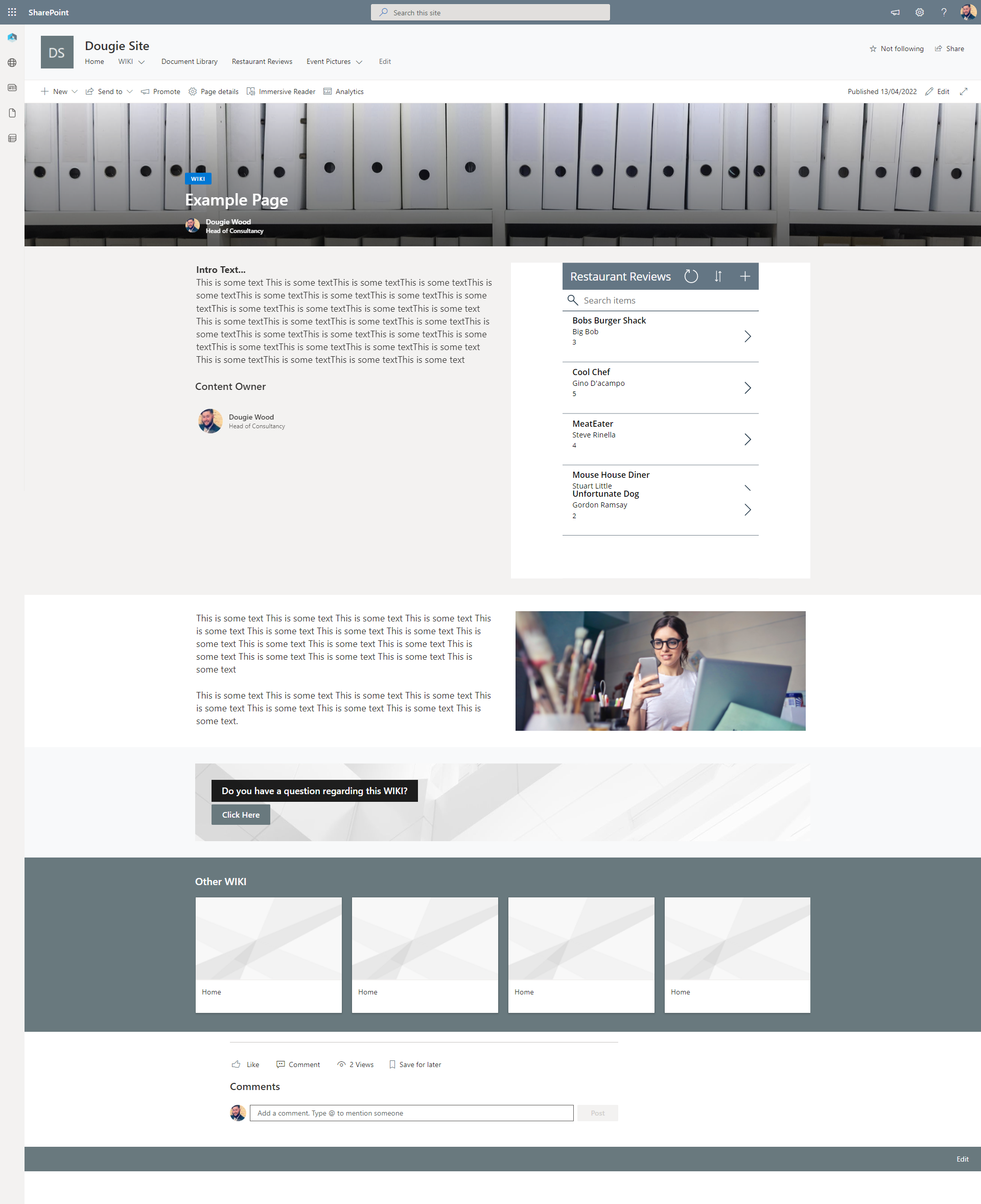
All via a Canvas PowerApp that is available to access via a browser, Microsoft Teams or from a mobile app on your phone or tablet.
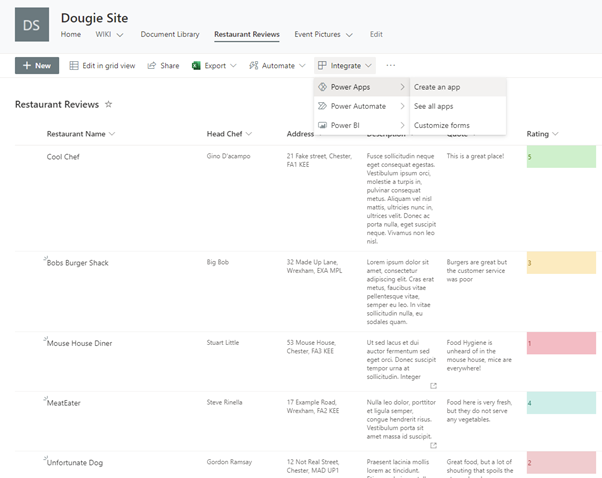
On any modern SharePoint list click on the Integrate drop down button then select Power Apps then from that menu select Create an app.
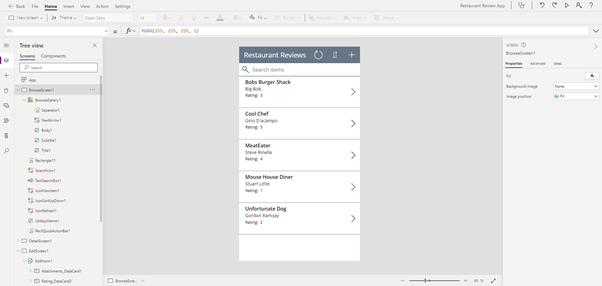
This will then automatically create you a Canvas Power App using the data from your SharePoint Online List.
It will require some finishing touches once it has been opened in PowerApps.
Please watch the video on this page to find out more about this approach.
The next option we have when it comes to using PowerApps in SharePoint Online is to customise the forms that interact directly on a SharePoint list.
By default a SharePoint list form is very basic. It has the ability to view, create to update an item within a SharePoint list.
However, you can choose to liven up this form experience by customizing it using Power Apps. #
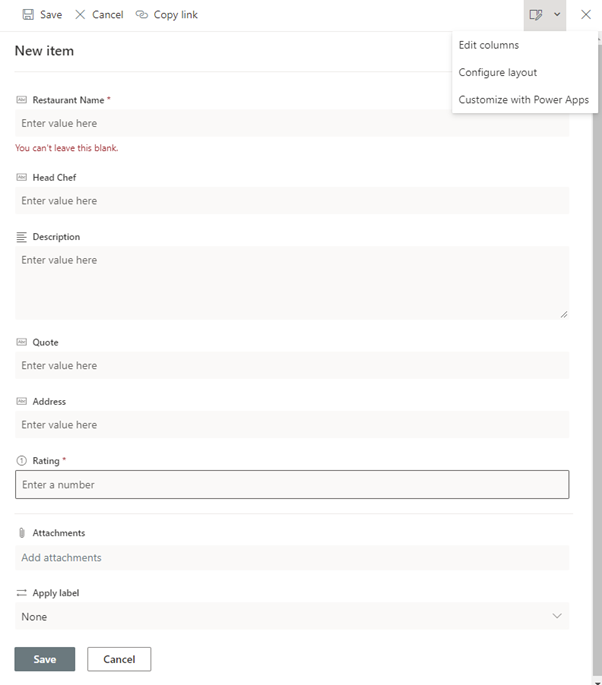
To do this simply click the New button on the SharePoint list then when the form opens select the form Drop Down at the top right corner of the form.
Then click on the Customize with Power Apps button. This will launch a new tab that will have your SharePoint list form ready to be customized with Power Apps.
Watch the video on this page for more details about how you can customise your SharePoint list forms with PowerApps.