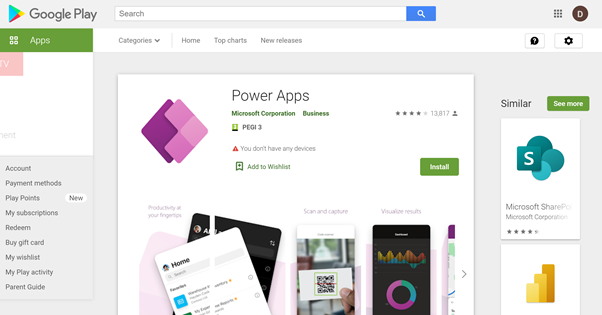
In a previous blog article we wrote about the process of Choosing the best hardware for Microsoft PowerApps. Since then we have received a number of questions about how to install PowerApps Android application.
If you already have built either a Canvas PowerApps or a Model Driven PowerApps then you will be able to use this app directly from your mobile device with PowerApps Android application.
In this article we aim to impart some useful information to know before diving into using Power Apps on an Android device. We are experts in everything Microsoft 365, if you have a specific question check out our limitless range of PowerApps Services.
Although using the latest version of Android on your mobile device is always the recommendation you will need to ensure that your device has Android 9 as a minimum (This is the latest mobile operating system at the time of writing this blog article).
As a rule of thumb the PowerApps Android application will support the last three major published versions of Android.
Find out more about different operating system versions.
If your application is built with Model Driven Apps there are a few steps you must carry out first as the data is stored in Microsoft Dataverse.
These are known as security roles and they must be provisioned to your account before you can access PowerApps on your android device.
This privilege is already setup for any user of Microsoft Dynamics 365 with a sales roles.
However, any other security role will need to be manually setup to enable access to the Dynamics 365 for phone and tablets app and Power Apps mobile.
Find out more about privilege’s with Microsoft Dynamics.

 Dougie Wood