Valto — Keep ahead of tomorrow

News

Create a SharePoint Document Library with Power Automate

In this article as part of SharePoint document management solutions, we will show you the best way to create a workflow that will create a SharePoint Document library with Power Automate.

Office365PowerAppsSharePoint
Published
5 January 2021
SharePoint Document Library Client Documents

How to create a SharePoint Document Library with Power Automate

In this article as part of SharePoint document management solutions, we will show you the best way to create a workflow that will create a SharePoint Document library with Power Automate.

There is no default out of the box Power Automate action to create a SharePoint document library with Power Automate. To achieve this, you will have to use a Power Automate action that is called “Send an HTTP request to SharePoint”.

This action is completely free as it is part of the SharePoint Online connector within Power Automate.

You DO NOT have to use the now premium HTTP connector which is now a premium connector. The SharePoint Flow connector is completely free when using Power Automate.

Previously the HTTP connector was free to use. Since it has been made premium in the past year workflows that had previously been using this will stop functioning unless you purchase a license(s) that includes the usage of premium connectors.

Video Guide: Creating a SharePoint Document Library with Power Automate

This article will contain a video demonstration. It will also contain all the code that you will require. So, you can simply copy and paste this into your own Power Automate workflow.

SharePoint Document Library Client Documents

Steps: Create a SharePoint Document Library with Power Automate

  1. Go to Microsoft Power Automate (Previously known as Flow)
    Power Automate Login
  2. Either create a new Power Automate workflow or open an existing workflow you wish to update with the ability to programmatically create SharePoint document libraries.
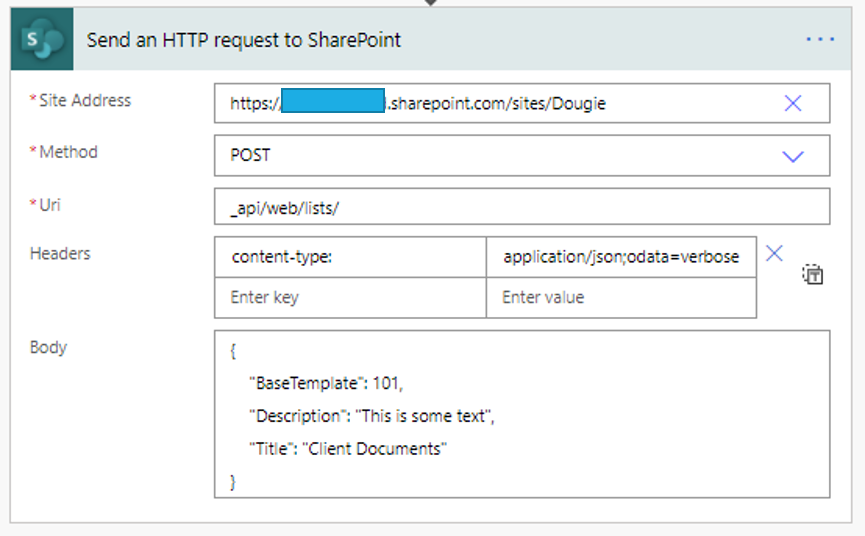
  3. Add a new Power Automate action to the page called “Send an HTTP request to SharePoint”.HTTP SharePoint Request
  4. Site Address: Specify the URL of the SharePoint site you will be creating the SharePoint document libraries on.
  5. Method: Select POST from the drop down.
  6. Uri: _api/web/lists/
  7. Headers Key: content-type:
  8. Headers Value: application/json;odata=verbose
  9. Body:

{

“BaseTemplate”: 101,

“Description”: “This is a SharePoint Document Library for storing documents related to our clients.”,

“Title”: “Client Documents”

}

10. Update the “Description” property of the body to reflect the purpose of the SharePoint document library that you are creating. You could also replace this value with a variable if you wished to pass in dynamic content.

11. Update the “Title” property of the body to give it a relevant name that is meaningful to your organization. You could also replace this value with a variable if you would like to pass in dynamic content from your existing Flow.

12. Save the Power Automate, then click on Test at the top right corner.

13. Once the workflow has ran, go to the site to check that the document library has been created successfully.

SharePoint http call

Code: Create a SharePoint Document Library with Automate

_api/web/lists/

content-type: application/json;odata=verbose

{

“BaseTemplate”: 101,

“Description”: “This is some text”,

“Title”: “Client Documents”

}

Trusted by Leading Brands

Our Microsoft SharePoint Consultants work with organisations across many sectors of different shapes and sizes from 10 to 100,000 employees.

Talk to our team

Contact Us

Related reading

NewsSharePoint

Mastering Document Control with SharePoint

Struggling with document versioning, policy visibility or outdated files? Learn how Valto’s SharePoint-based Controlled Documents Solution solves the most common document control challenges.

7 May 2025