

NewsMicrosoft 365
How Microsoft AI Is Evolving in 2026
Our best practices and tips for designing SharePoint Department Sites. Training, development and support for Microsoft services.
20 November 2025

News
Microsoft has deployed Copilot for Microsoft 365 to nearly all its employees and vendors, becoming the first enterprise to do so at scale. This week, nearly everyone at the company has access to this new tool.
Copilot for Microsoft 365 is a productivity solution leveraging AI and large language models (LLMs) to enhance productivity.
It integrates seamlessly across Microsoft 365, Windows, Bing, the Microsoft Cloud, and other Microsoft applications.
As Customer Zero, Microsoft had early access to Copilot for Microsoft 365, allowing the company to test the product at an enterprise scale.
“We’re pioneers in using AI in our products,” says Sisson, who leads the rollout of Copilot for Microsoft 365 internally.
“We’re the first enterprise in the world to launch Copilot at scale, and we’re capturing a ton of insights.”
Copilot for Microsoft 365 integrates with data in Microsoft 365 Graph and various Microsoft 365 applications like Word, Excel, PowerPoint, Outlook, and Teams.
The tool assists in various tasks, such as summarizing meeting action items, conducting on-the-spot data analysis, and crafting high-quality content quickly.
Strong governance measures are in place to protect employees and the company while facilitating the use of AI tools.
Microsoft adheres to Responsible AI and governance guidelines and collaborates with global employees represented by labor unions and works councils.
Each of the main Microsoft 365 applications has a Copilot that you can use. Here are some of the ways you can use Copilot in each of the apps:
– Quickly recap, identify follow-up tasks, create agendas, and ask questions for more effective and focused meetings and calls.
– Summarize key meeting takeaways, see what you might have missed, and pinpoint key people of interest in chat threads users were added to.
– Find and use info that’s buried in documents, presentations, emails, calendar invites, notes, and contacts.
– Summarise information across multiple sources like recent customer interactions, meetings, shared content, and deliverables.
– Prepare for a meeting based on topics and sources.
– Create a status update from the day’s meetings, emails, and chat discussions.
– Transform existing written content (such as documents, images, and graphs) into decks complete with speaker notes and sources.
– Start a new presentation from a prompt or outline.
– Condense and streamline presentations.
– Use natural language commands to adjust layouts, reformat text, and time animations.

– Write, edit, summarise, and create content in Word.
– Create a first draft, bringing in information from across your organisation as needed.
– Add content to existing documents, summarise text, and rewrite sections or the entire document.
– Incorporate suggested themes, styles, and tone.
– Provide suggestions to strengthen arguments or smooth out inconsistencies.
– Query your data set in natural language, not just formulas.
– Reveal correlations, propose what-if scenarios, and suggest new formulas based on your questions.
– Generate models based on questions via natural language.
– Identify trends, create visualisations, or ask for recommendations and insights.
– Get help finding the best time for everyone to meet.
– Compose more effective emails with suggestions from Copilot.
– Analyse, summarise, and get action items from email threads.
– Respond to existing emails with simple prompts and turn quick notes into new email messages.
– As Microsoft Loop pages get filled with ideas and content, ask Copilot to summarise themes and actions.
– Edit or correct Copilot summaries, add additional details or context, and communicate with others.
– Collaborate with colleagues in real time in the same Workspace.

– Elevate and ideate on new ideas on any topic.
– Visualise any idea and use Microsoft Designer to generate designs.
– Categorise unorganised bullet lists and notes, including sticky notes, into organised groups based on themes.
– Summarises all note content in the board and creates a summary output as a Loop component for further collaboration.
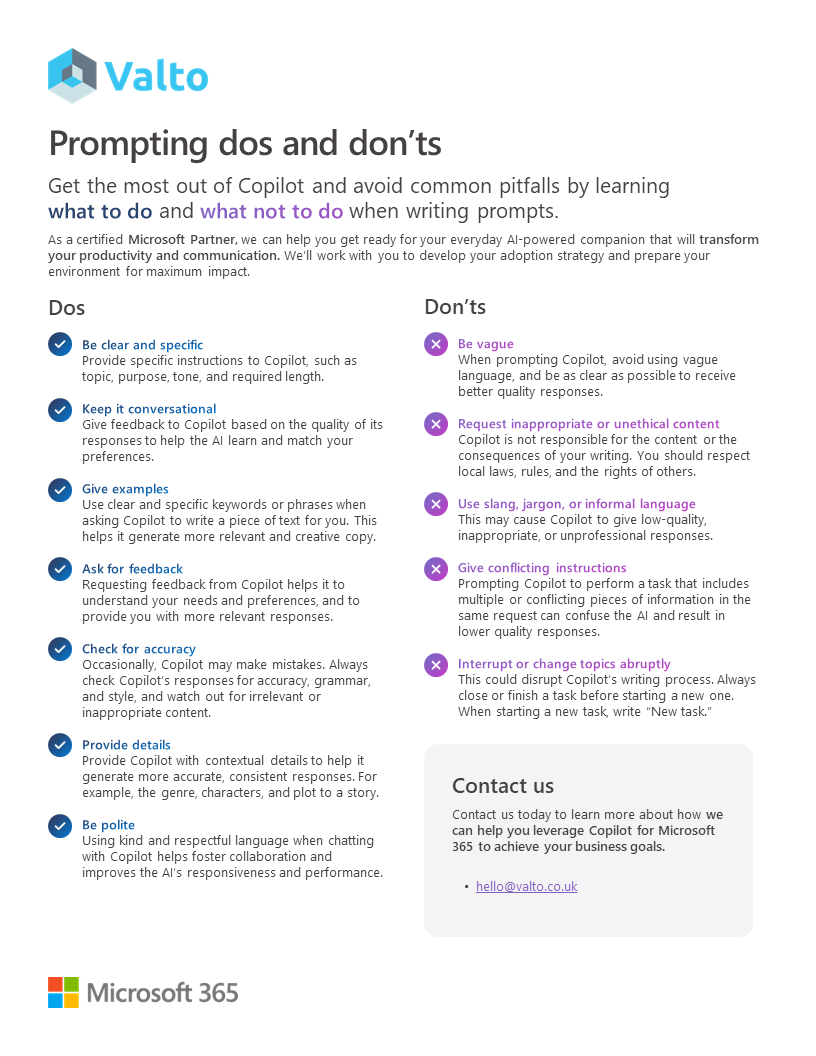
Using the right prompt is your key for getting the most out of Copilot for Microsoft 365. Prompting Copilot for Microsoft 365 is the process of giving instructions or asking questions to Copilot in natural language. You can prompt Copilot by typing your request in the Copilot window. Copilot will then respond with relevant output, such as text, images, graphs, or actions. To prompt Copilot effectively, follow these best practices:
“We work with organisations across many sectors of different shapes and sizes from 10 to 100,000 employees.”
Contact our team today!
Microsoft has deployed Copilot for Microsoft 365 to nearly all its employees and vendors, becoming the first enterprise to do so at scale. This week, nearly everyone at the company has access to this new tool.
Microsoft has deployed Copilot for Microsoft 365 to nearly all its employees and vendors, becoming the first enterprise to do so at scale. This week, nearly everyone at the company has access to this new tool.
Our best practices and tips for designing SharePoint Department Sites. Training, development and support for Microsoft services.
20 November 2025

Our best practices and tips for designing SharePoint Department Sites. Training, development and support for Microsoft services.
8 October 2025

Explore how SMEs can use Microsoft Model-Driven Apps to create affordable, custom CRM-like systems. Learn how to manage customer data, track sales, automate tasks, and access powerful reporting—without the high cost of Dynamics 365.
22 January 2025