Valto — Keep ahead of tomorrow

News

Learn Power Apps in Three Steps

Learning a new skill can be both exciting and challenging. When it comes to mastering Microsoft Power Apps there are several avenues you can explore to speed up your learning journey. Quickly and easily learn Power Apps with this three-step guide to fast tracking your learning process using free materials from Microsoft.

PowerApps
Published
23 August 2023

How to Learn PowerApps from Scratch in 3 Quick Steps!

Want to know how to learn Microsoft PowerApps in the best step by step way? If so, read on for our team’s tops on the best ways to learn PowerApps and how to use it!

Watch the video (opens in a new tab)

Is PowerApps Easy to Learn?

Learning a new skill can be both exciting and challenging.

When it comes to mastering Microsoft PowerApps there are several avenues you can explore to speed up your learning journey step by step, whether you’re a true beginner or someone looking to enhance their existing knowledge.

There are resources available that cater to various learning styles. Microsoft produces a lot of free materials for you to use, and can be a great way to learn PowerApps properly.

In this article, we’ll explore three distinct ways you can learn Power Apps effectively, each offering its own unique advantages.

1. PowerApps Training Template: Learn Through Immersion

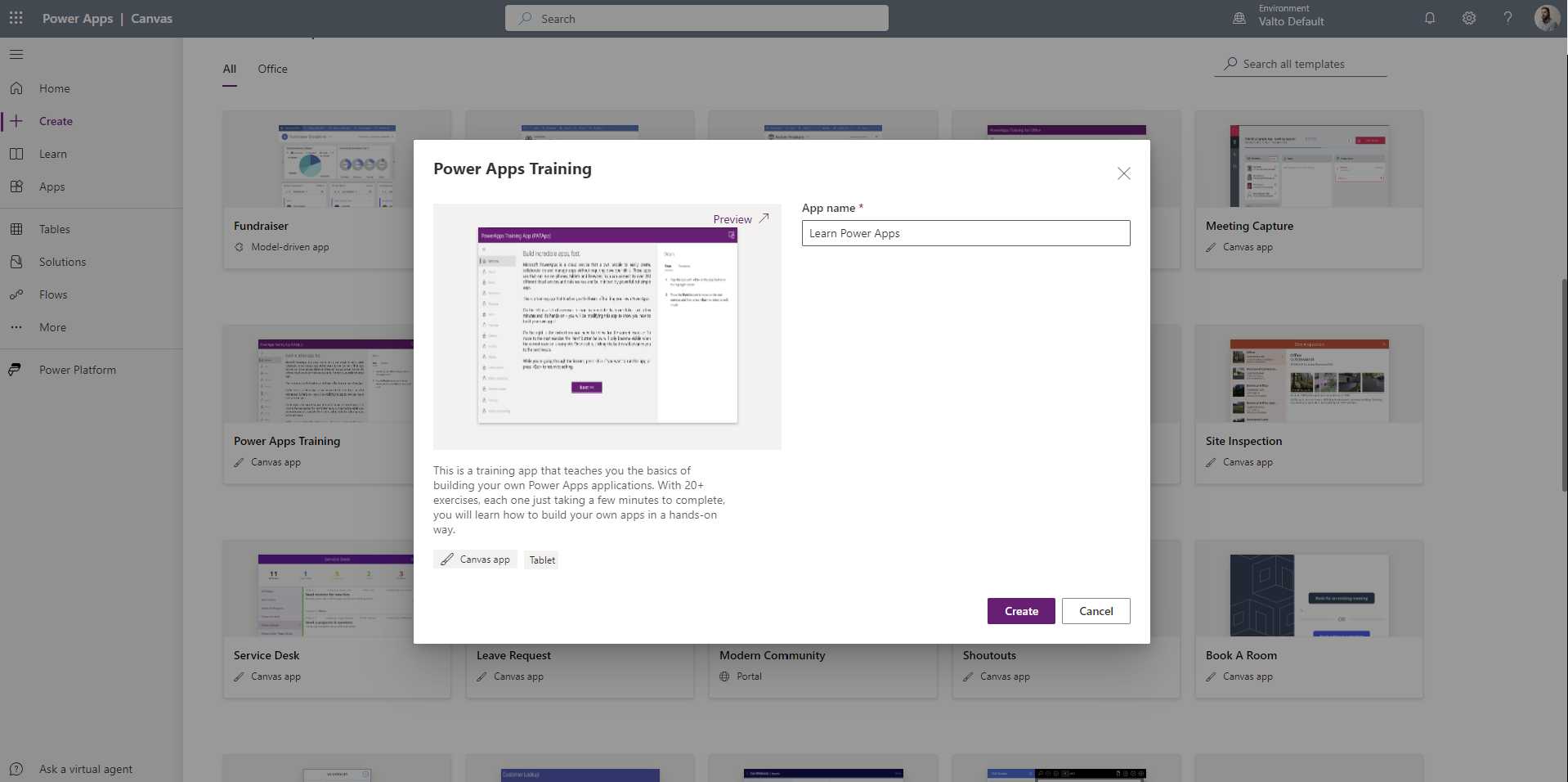
One of the most immersive ways to learn PowerApps is through the Power Apps Training Template.

Developed by Microsoft, this training template offers an innovative approach to learning.

It does this by integrating the educational process directly into the PowerApps environment.

What better way to learn Microsoft PowerApps than within an actual PowerApp? Hands-on training is one of the best ways to learn PowerApps, since you’ll get to grips with the platform interface.

The training template is designed to guide you through a series of tasks within a PowerApp, ensuring that you not only understand the theoretical concepts but also gain practical experience.

This method of learning leverages a guided pathway where you are presented with specific tasks to complete.

If you want help building a PowerApps training template that’s truly comprehensive,  the experts here at Valto can help.

Power Apps Training Template

How does the PowerApps Training Template work?

The training template doesn’t let you move on to the next section until you’ve successfully completed each task. This ensures that you grasp each concept before progressing further.

It will ask you to change the app you currently view the tasks in as you go along. The hands-on experience of building apps within the PowerApps environment helps solidify your understanding and makes the learning process more engaging. The template is an excellent choice for those who prefer learning by doing.

As a true testament to Microsoft’s commitment to making learning accessible, the PowerApps Training Template is free to use. This means that you can dive into the world of PowerApps without any financial barriers.

If you’d prefer more one-on-one support on how to use PowerApps from a Microsoft PowerApps Expert Consultant we’re happy to offer one-to-one training or full workshops.

2. Learning Pathways: Guided Learning from Microsoft

Another fantastic way to learn PowerApps is through Microsoft’s Learning Pathways. This official Microsoft website offers a comprehensive collection of resources designed to guide you through your PowerApps learning journey.

Like the PowerApps Training Template, Learning Pathways is also developed by Microsoft.

Ensuring that the content is accurate, up-to-date, and aligned with industry best practices, Learning Pathways provides a structured approach to learning, making it ideal for individuals who prefer a step-by-step progression.

The platform contains a range of resources, including videos, written tutorials, and knowledge quizzes that help you test your understanding of the concepts. These resources are often related to Microsoft Power Platform certification exams, which can provide you with a tangible goal to work towards.

You can learn about Canvas Power Apps, Model Driven PowerApps, Power Bi, Microsoft Fabric, Virtual Agents, PowerApps Pages and more!

One of the biggest advantages of Learning Pathways is its accessibility. You can access these learning resources for free on the official Microsoft website. This makes it a great option for anyone who wants to follow a guided learning path while benefiting from Microsoft’s authoritative resources.

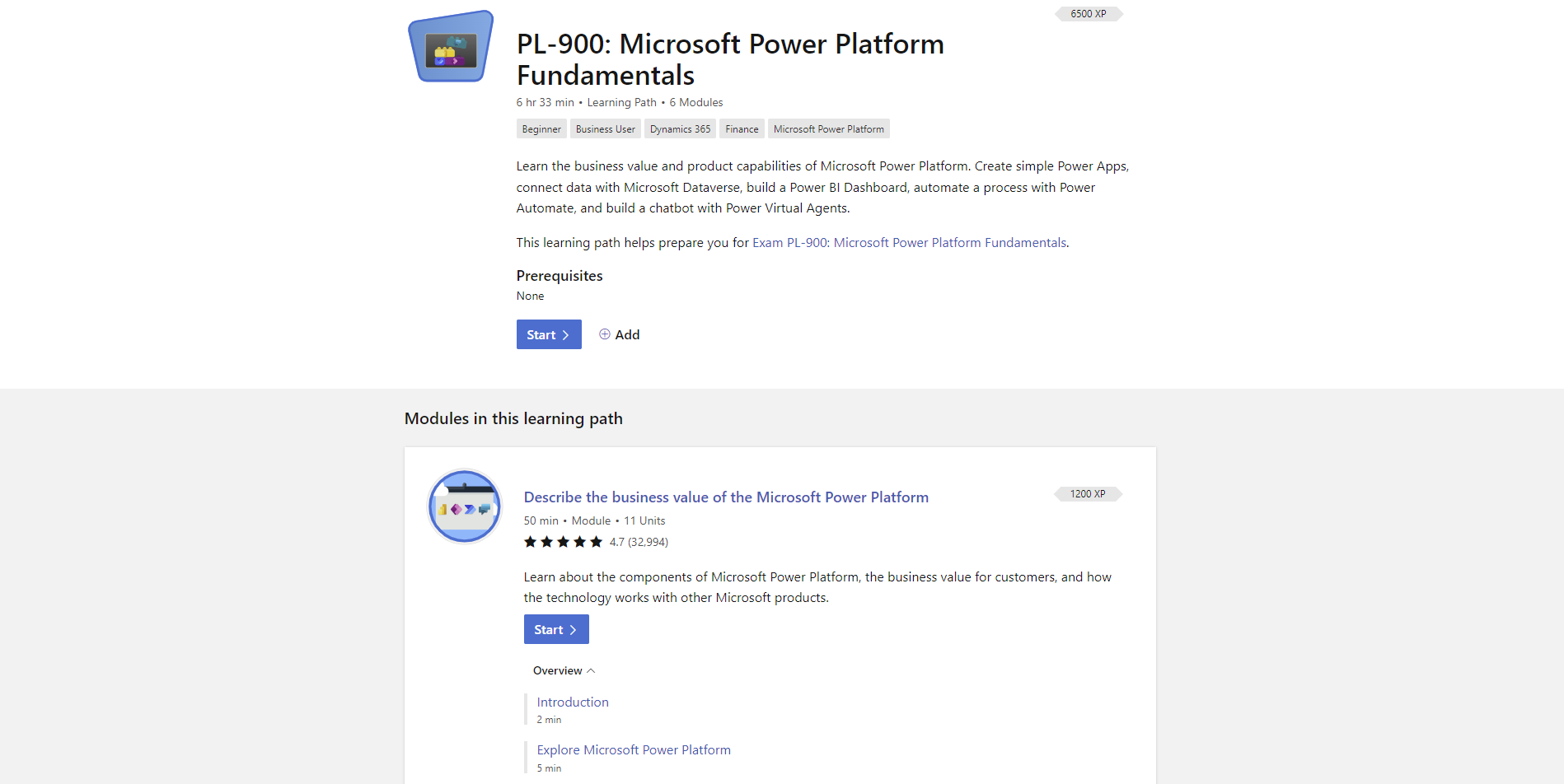
For those interested, we recommend exploring the Microsoft Power Platform fundamentals learning pathways to get a deeper understanding of the product.

PL900 Power Platform Learning Pathways

3. Chat GPT: Your AI-Powered Learning Companion

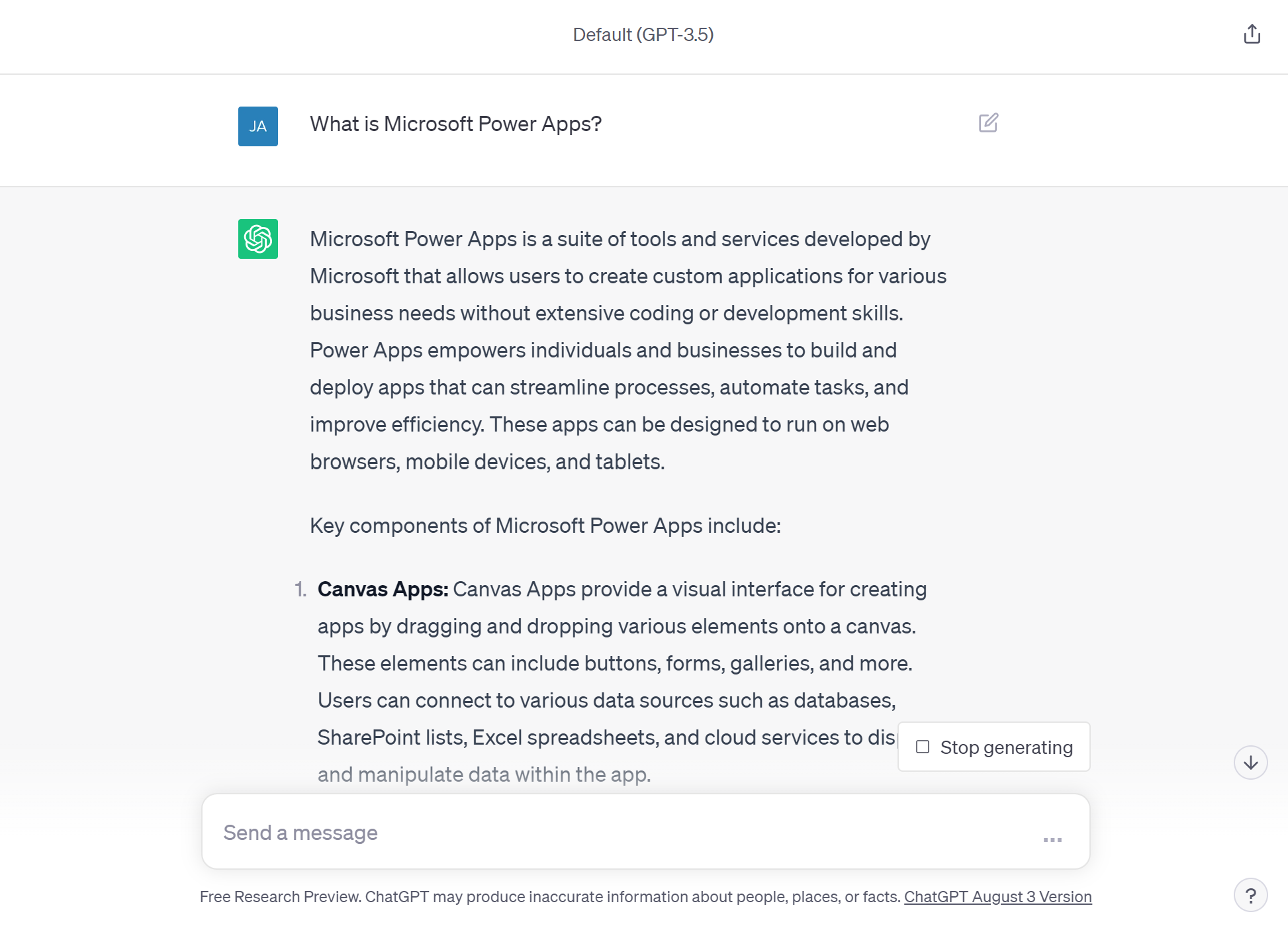
In the realm of technological advancements, artificial intelligence is becoming an increasingly integral part of our lives. Why not use AI to help with how to learn PowerApps?  Enter Chat GPT—a powerful AI language model that can aid in your journey to learn PowerApps. Using Chat GPT for PowerApps training means you can ask AI questions and get informative responses based on the information available online. Chat GPT is free to use and can provide valuable assistance to both beginners and experienced learners. If you’re just getting started learning about PowerApps, you can ask Chat GPT general questions about concepts, features, and processes. You might find as you start creating your first PowerApps that your code (known as formulas) isn’t working as you expect. Luckily, one of the remarkable features of Chat GPT is its ability to rewrite formulas. ChatGPT can even generate code snippets to help you understand how to implement specific functionalities. It can provide you with alternative formulas if yours aren’t working - potentially saving you valuable time and frustration and allowing you to focus on learning rather than troubleshooting. It’s worth noting that AI is rapidly evolving, and Microsoft is actively integrating AI into Power Apps. The AI feature in Power Apps is known as Microsoft Copilot, offering even more advanced support and guidance. Remember, while Chat GPT provides valuable insights, it’s important to approach its responses with a degree of critical thinking. While highly knowledgeable, AI responses might not always be 100% accurate. However, they can still be immensely helpful in pointing you in the right direction and providing clarifications.

1. Mobile vs Tablet PowerApps

There are two fundamental types of layout for a Canvas PowerApp. You have an option for a mobile phone layout (Portrait) and you have a Tablet layout (Landscape).

Mobile layouts provide much better usability on a mobile phone. Although you get less space on the screen, mobile phone users do not need to flip their devices on their side to be able to use the app.

Microsoft Powerapps Step 1

Tablet layouts can be used for tablets, laptops and desktop computers. With the Tablet layout you’ll get a lot more space for functionality in your PowerApp. If however you also intend users to access your PowerApp on a mobile device, the Tablet layout could appear small and cramped.

HR Manager Communications screen

It is possible to use either sort of layout on any of the device types. In practice this means you could open a Tablet layout (landscape) Canvas PowerApp on a mobile phone, but it would be cramped and vice versa a Mobile Phone layout (Portrait) opened on a tablet device would display with extra space.

2.     Free PowerApps Templates

To all users getting started with PowerApps, it is recommended to look over the templates Microsoft offer out of the box.

The free templates will help you understand how a solution is built and you might find something that meets your requirements out of the box.

To view the templates, navigate to the PowerApps portal, then click on “Create” – on the left-hand side you will see there is an option to select “Templates”

The templates give a great understanding of what Apps you could build and what connectors/controls you can use to create solutions.

Template options power apps

You can often find ideas of how to achieve something such as a navigation bar or dashboard for example. They can often provide a great starting point for you to then customise to your requirements or if you just want to steal a line of formula to achieve something in your existing app.

3.     Third Party Connectors

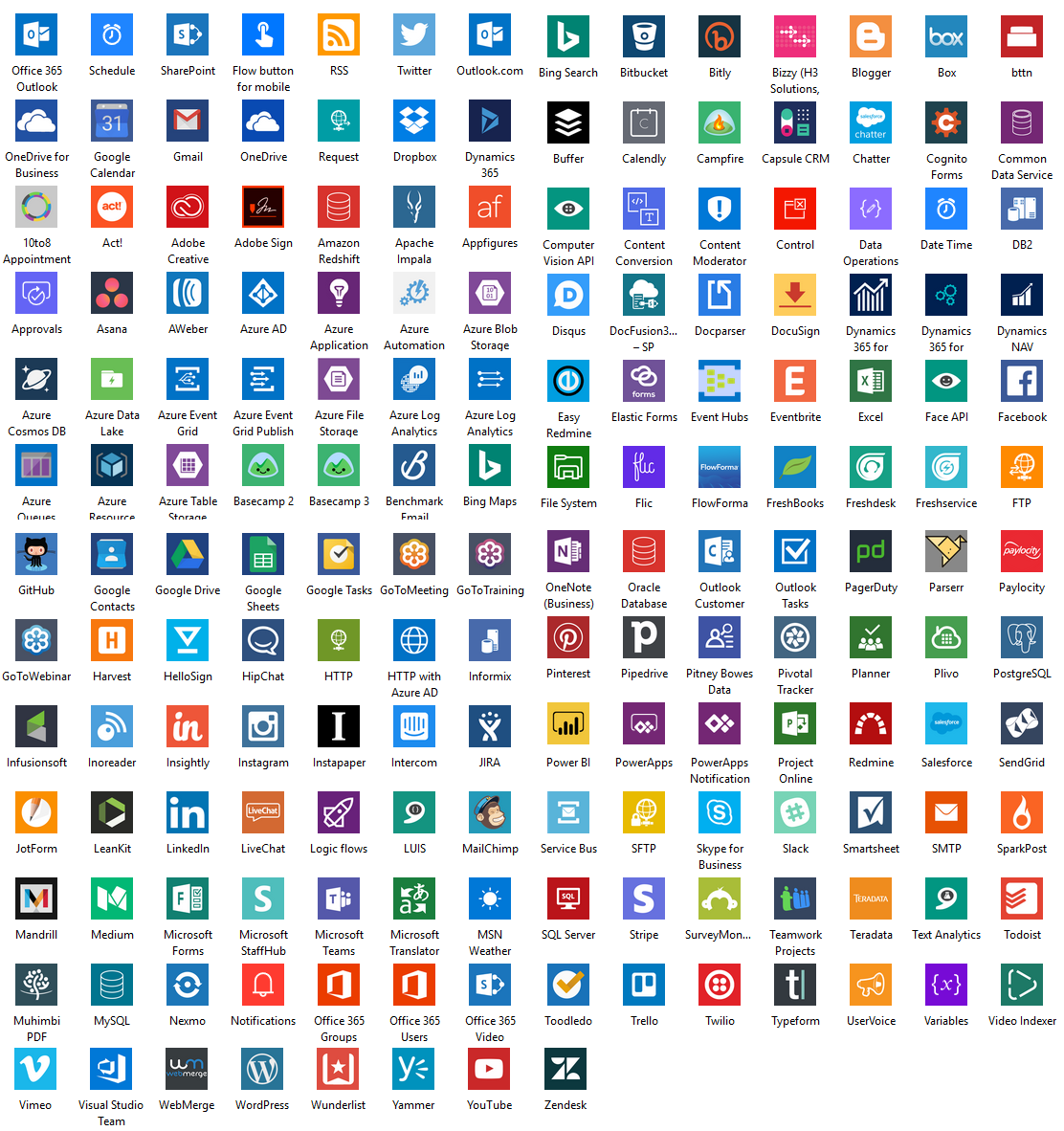
PowerApps not only provides an easy way to integrate multiple Microsoft Office 365 products it also connects with third party products also. This means you can use the features of other services without having to build it all yourself.

It also means you can integrate with systems you are already using such as twitter, mail chimp, Google drive and so much more!

ChatGPT Power Apps

5. Export a PowerApps

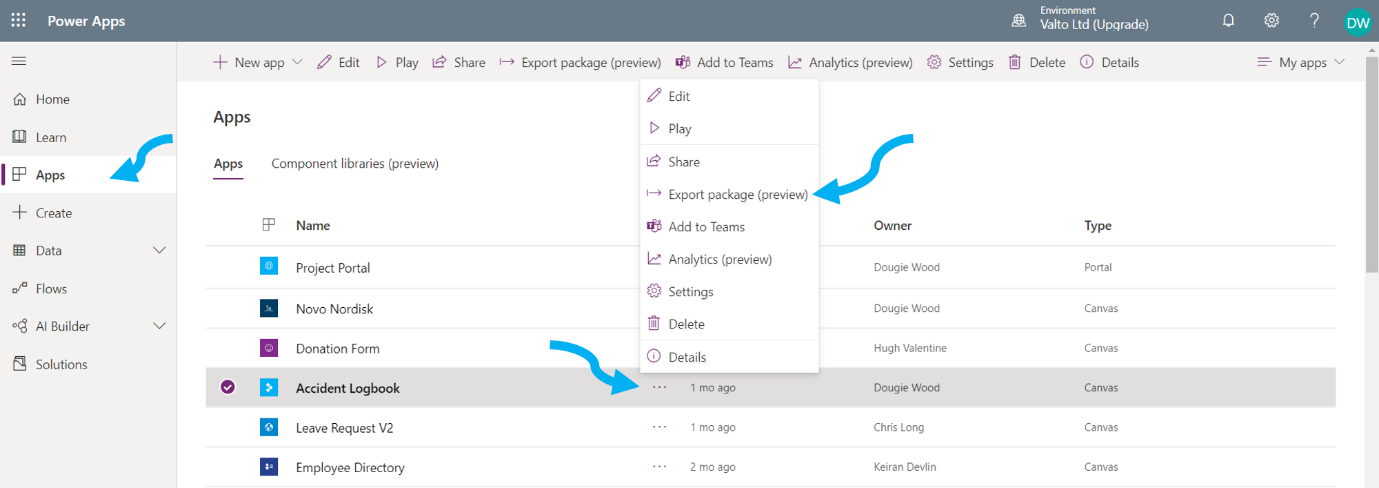
Once you have built your PowerApp in your development tenant it is also possible to export your PowerApp and import it into your production Office 365 tenant. To do this simply go to the PowerApps portal in your development Office365 tenant, then click on “Apps” on the left hand side, find your app in the list of apps, click the more options three dots, then click “Export Package” at the bottom of the drop down. (as shown below) The next page will ask you to provide a name and other basic information for your PowerApp package. You will the click on Export at the bottom right of the screen. Once you have your PowerApp zip file downloaded ensure it is saved in a safe location. You do not need to unzip the file, ensure it stays zipped in the original way it was downloaded. Then navigate to your PowerApps portal in your production Office 365 tenant. Click on “Apps” on the left-hand side, then click “Import canvas app” on the top bar. The next screen will ask you to upload your zip file. Ensure you upload the originally downloaded file that has not been extracted etc. Remember to change the import type from “Update” to “Create as new” the first time you upload your app. In the future you can use the “Update” feature to roll out updates to your PowerApp from the app in your development environment using the exact same method. Once you have ensured all the connections are correct click the “Import” button at the bottom right of the screen. This will complete the import process of your new application.

So, what’s the best way to learn PowerApps?

Clearly, learning how to use PowerApps can be approached in a variety of ways, catering to different learning preferences and circumstances.

Whether you choose the immersive experience of the PowerApps Training Template, the structured guidance of Learning Pathways, or the AI-powered insights of Chat GPT, each method offers unique advantages.

These resources are designed to help both beginners and those with existing knowledge enhance their skills in PowerApps, making it easier to create custom business apps and solve real-world challenges.

Of course, our team of PowerApps specialists are also on hand to help create a custom training programme or help with any specific use cases for your business.

Expert Quote: 

“Remember, the key to mastering any new skill is consistent practice and a willingness to explore various learning avenues. So, embark on your Power Apps learning journey with confidence, and soon you’ll be harnessing the full potential of this dynamic platform.”

How Valto Can Help You Learn Power Apps

When it comes to navigating the vast landscape of Power Apps and Microsoft’s Power Platform, Valto stands as a trusted partner, offering a range of specialised services to propel your organisation forward in the digital age.

Power Apps Workshop: Unlocking the Potential

Valto’s Power Apps Workshop is your key to harnessing the full potential of Power Apps.

This tailored workshop serves as a comprehensive solution for organisations looking to implement new Power Apps projects.

Valto’s experts collaborate closely with you to understand your unique requirements, helping to scope out the exact needs of your project.

They then provide you with a fixed price quote for building the desired Power App, ensuring transparency and predictability in your project’s budget.

But the assistance doesn’t stop there. Valto goes a step further by offering the option to build a Minimal Viable Product (MVP).

This not only enables you to quickly bring a functional app to life but also empowers your internal staff to gain hands-on experience and further develop the app as needed. With Valto’s training and guidance, your team can confidently take ownership of the app’s evolution.

Power Platform Adoption Program: Empowering Your Organisation

Valto’s Power Platform Adoption Program is a 6-week intensive initiative designed to facilitate a smooth rollout of the Power Platform within your organisation.

With a specialised accreditation in Microsoft Adoption, Valto brings a wealth of experience in implementing the Power Platform with proper governance.

The program covers various aspects, including Power Apps training and collaboration on building quick-win solutions.

Valto understands that a successful Power Platform adoption extends beyond just technology—it’s about ensuring that your organisation effectively integrates these tools into its processes.

With Valto’s guidance, you’ll be equipped to make the most of the Power Platform’s capabilities while maintaining the highest standards of governance and compliance.

Power Platform Strategy Workshop: Charting Your Course

If you’re seeking a strategic approach to implementing the Power Platform across your organisation, look no further than Valto’s Power Platform Strategy Workshop.

In just one day, Valto’s experts will guide you through a comprehensive session to create a tailored roadmap for your Power Platform journey.

This workshop covers critical factors such as security, connectors, ownership, and establishing a Center of Excellence.

By addressing these key considerations, Valto ensures that your organisation’s Power Platform implementation is well-aligned with your broader business objectives.

To gain a deeper understanding of how Valto’s Power Platform Strategy Workshop works, you can watch an informative video explainer here.

Learn PowerApps – Next Steps

I hope you found this article useful, if you are interested in getting some assistance with SharePoint Online or PowerApps, please feel free to contact me with any questions using our contact us form.

You might also be interested to read Everything you need to know about Microsoft PowerApps Portals (valto.co.uk)

Author

Dougie Wood

Microsoft MVP

Talk to our team

Topics
Share this

Related reading

NewsMicrosoft 365

Dynamics 365 vs Model Driven Power Apps

Explore how SMEs can use Microsoft Model-Driven Apps to create affordable, custom CRM-like systems. Learn how to manage customer data, track sales, automate tasks, and access powerful reporting—without the high cost of Dynamics 365.

22 January 2025

NewsPowerApps

Power Apps vs. Power Automate

Explore the differences between Power Apps and Power Automate and learn how combining them can deliver powerful, low-code solutions for businesses. Discover how these tools work together to streamline processes and improve efficiency.

21 January 2025

NewsPowerApps

Using The UpdateContext Function In Power Apps

Discover how to efficiently use the UpdateContext function in Power Apps to manage context variables, optimise memory usage, and enhance app performance. Learn best practices and practical examples for Canvas Apps.

21 January 2025