What Can Copilot Do? Exploring Functional Scenarios
Explore how Microsoft Copilot supports IT and Marketing teams with real-world scenarios, helping automate tasks, analyse data, create content, and accelerate project delivery.
7 May 2025
News
This blog article provides practical tips on leveraging Microsoft Copilot AI for marketing tasks, such as data analysis, creating pitch decks, and generating images. It is designed to help marketers enhance their productivity and efficiency by utilizing Microsoft Copilot AI tools.

Join Dougie Wood, Valtos very own Microsoft MVP to learn how to use Microsoft Copilot AI to streamline your Marketing tasks.
This blog article provides practical tips on leveraging Microsoft Copilot AI for marketing tasks, such as data analysis, creating pitch decks, and generating images. It is designed to help marketers enhance their productivity and efficiency by utilizing Microsoft Copilot AI tools.
Watch the video (opens in a new tab)
In this vlog i’m going to share with you my top three tips To use Microsoft Copilot AI for Marketing. This will be following a “Day in the life of” style story of a marketeer working for a company selling different types of bikes.
Now working in marketing myself, I use Microsoft Copilot AI for a number of different ways to streamline my day.
I’m going to be showing you across the board some different examples including analysis of data inside of Excel, creation of PowerPoint Pitch decks and using Microsoft Copilot to create images.
So stick around as you will learn how to optimize your day and save time on your marketing tasks.
So first off i’m going to start with the analysis of data. Now, I don’t know about you, but i’m no whiz when it comes to Microsoft excel formulas and functions.
Actually, when it comes to getting data together and analysing it for marketing purposes, my skills can often fall short of being able to get the information I need to make the right decisions.
So this is where Copilot for Microsoft 365 can step in and really help dive into the data and get insight Without having to know loads of advanced formulas and functions and pivot tables and all the other things that often people need to know about excel.
In the video at the top of the page you can see I’ve got my sample file with a bunch of test data about bike sales.
So to start off i’m going to click on the Copilot button across the top right hand corner of excel now.
It’s not sorted any particular way and actually this is a sample file that I’ve used from a Microsoft website, which is essentially simulating the sales of Push bikes, mountain bikes road bikes things like that from a fake company.

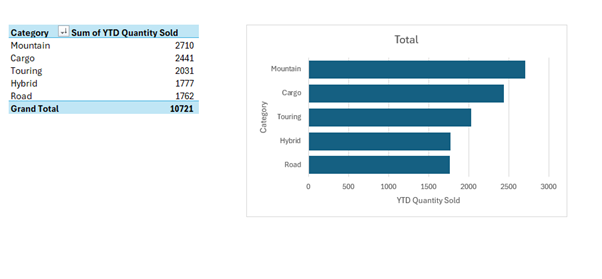
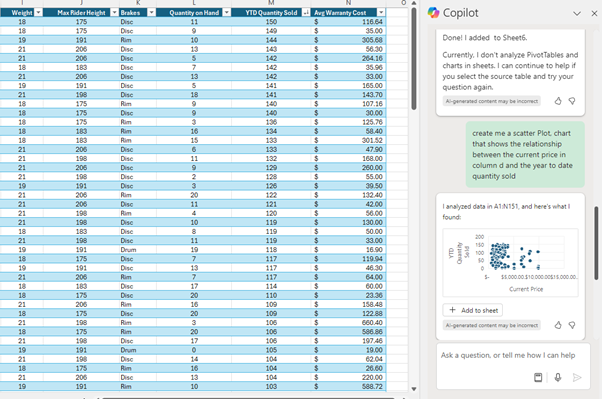
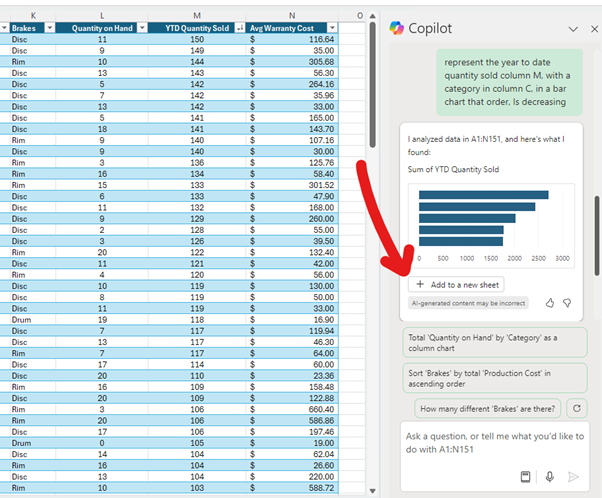
So the first thing I want to do is get a better view of this data. So what i'm going to start off with is asking Microsoft Copilot to order the table By the quantity sold in column m and put it in decreasing order. So basically it's summarized what I wanted to do and it's got the range Of the table for me automatically. All I need to do is click on apply and then it will automatically apply that sort for me. So now I can see the data in my excel sheet ordered by the amount of different types of bikes that have been sold. I could take this one step further, and I could ask it to provide this information to me in a clear bar chart. So here we go, I've typed in my prompt, represent the year to date quantity sold column M, with a category in column C, in a bar chart that order, Is decreasing. So what it's going to do is create a bar chart using the amount that's been sold As well as the category of the types of bike whether a mountain bike cargo bike or road bike. I’ve asked it to provide in a decreasing order as well so I can see What the most sold bike would be. Microsoft Copilot for Excel has analyzed the data and here's what it's found now. if i'm happy with this bar chart all I need to do is click on add to new sheet And what that'll do is it'll create a brand new sheet. I can then see my table and you can see here now that mountain bikes are clearly head and shoulders, above the rest in terms of what they're selling next in line is cargo and then touring bikes after that. So that's a really simple way as I say without needing to know a lot about excel that I could quickly determine actually mountain bikes is what we're selling the most of at the moment now. I could also ask for some other things to analyse the data a bit further to see if I could spot any patterns or see if Microsoft Copilot can actually provide me with some patterns of this data as well. So the final thing that I'm going to do is I'm going to ask it to create me a scatter Plot, chart that shows the relationship between the current price in column d and the year to date quantity sold So I can see if there's any patterns in terms of how many has been sold In comparison to the price at which we're selling it at. So there you go. It's created me now a little bit of Analysis here again, I can choose to add that to the sheet to actually see this in a bit more detail if I wanted to. You can see here I can start drawing out a bit of analysis from this data In terms of I can see there's a lot more sales in the lower value area. I can start looking at some of these clusters to see actually maybe just underneath the 2000 dollar mark is a good sweet spot for us to concentrate on. This analysis will start giving me ideas I could use to optimize some of the marketing campaigns I am planning to optimise.
So let’s maybe think about how we could use some of that information to update some of the pitch decks that our sales team are using.
This example bike company is releasing a new pedal assist system for their e bikes.
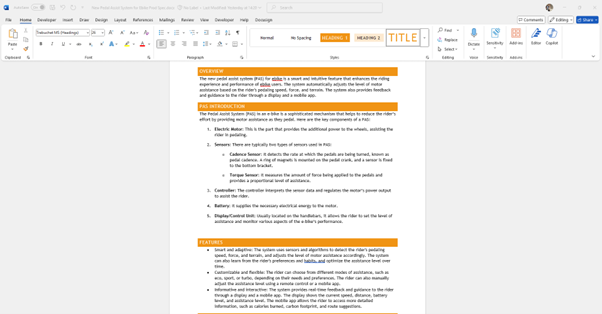
They’ve drafted up a bit of a product specification document already that we can feed into Copilot. With the core information about this new feature, which they’re rolling out to their e bikes.
And we can also incorporate some of the knowledge that we’ve learned from the analysis of the data or sales data into our documents as well.
What I’m going to do is I’m actually going to take all this information and I’m going to create a brand new pitch deck that our sales team are going to use to sell these e bikes into specific bike shops.
So this is something that traditionally could take a long time for a marketing team to have to go and create materials from scratch.
Sales materials like PowerPoint decks pitch decks or things which other branded materials departments request are very time consuming.
However, with Microsoft Copilot this really streamlines the process, from days to hours or even minutes.
So if i’ve already got The information say in a product specification document and I just need to create a nice visual pitch deck to give that information to our sales team in a simple presentation.


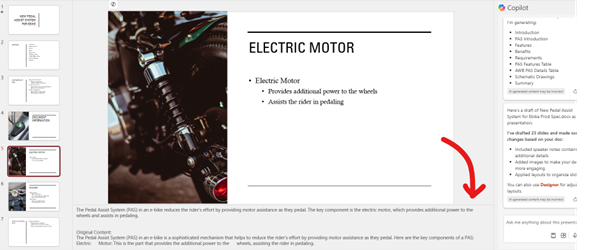
All I need to do is click on Microsoft Copilot button Inside of a brand new fresh PowerPoint deck and you can see i've got three options here. I have the option to “create a presentation about” and this allows me to give it a topic. Microsoft Copilot would then go away and use the internet essentially to get information together to bring this back in. So, if this was something very generic or I was looking at starting a new project I just wanted to get information maybe on say for example the top 10 Mountain bikes or something like that. It could go and creates me that PowerPoint deck for me but because I'm trying to create a PowerPoint deck pitch deck from information I already have 'm going to click on this create presentation from file. Now This is going to find all the recent files i've recently been working on, but here is that new pedal assist document that we're looking at before. So i'm going to say create presentation from file and select that file and what this is going to do now is going to create me my pitch deck by analyzing that document. Before it creates it what it's going to do start drafting out all the different slides that it thinks it's going to create in the final version. So you can see here Introduction features benefits requirements all the different things that a typical kind of pitch deck would likely contain. now creating me all of those slides for me now From my experience, I find Microsoft Copilot in PowerPoint will often create more than what you need and then you can go and choose to retrospectively update afterwards or remove things you do not need. We can choose to incorporate the designer features of PowerPoint to give it something a little bit more. So it knows, for example, that this PowerPoint is a pitch deck all about bikes so the designs reflect this theme. In this powerpoint deck I can then go through and have a look at what it's created. So it's got a bit of an agenda slide, a bit of an overview, key documents information from the product spec document. We can see that it's got some information about the electric motor also it's going to draft us some notes as well. So if we open up the notes section, you can see that it's created us some notes from our product spec as well. Some information about the sensors, the display controls, things like that. Now this is all using images as well that it's found stock images that relates to those particular pieces. We can use Copilot as well to help us with some other things. So if I was to click on the view prompt there of Copilot and then click on view prompts here. We can see there's a whole host of different things. For example, we can create presentations, adding slides, extracting information. I'm not going to go through all these but I recommend that you revie each of the options.
Under ask you can see It can give you things that give me specific examples from this presentation how I can improve it.
So you could ask it for specific examples about how you could improve this pitch deck further.
It would be like a colleague reviewing this, set of slides and providing you in certain information
For example, it’s suggested improvements to the introduction slide.
So maybe we need to do a little bit more about explaining who the company is and what we do.
Electric motor slides to emphasize the importance of electric motors in providing additional power to the wheels. So you can see here it’s provided loads of information here of how we could update the slides.
And this is basically not just saving us time, but it’s saving our colleagues time who might need to review this pitch deck before we would then send it back to the requestor.
Now, Microsoft do have loads of stock images that you can use in word and PowerPoint and things like that. However, there might be times where you want to create something very specific as an image and you want to use AI to generate that image for you.
You can use Microsoft Copilot to generate those images.
So let’s say for example, it might be that I want to create some images for this new marketing campaign that we’re launching.
And part of it is about the sort of ecological benefits and environmental impact that a cycle to work scheme could potentially have. Rather than having loads of cars and buses and things like that causing traffic jams and pollution.
We want to create a bespoke image that is going to complement this narrative.
What we can do is we can ask Copilot to create an image of a man riding a mountain bike up a mountain path away from a polluted city with traffic jams causing traffic jams.
We’re asking it to create something very specific as a set of images here.
He’s a number of fantastic images Microsoft Copilot has created. It has really captured the essence of what I would like to visualise from all the traffic jams and pollution that’s being caused.

Microsoft Copilot will drastically reduce the boring admin tasks that come with Marketing, giving you so much more time to focus on the fun stuff!
Microsoft Copilot can be used in all avenues of Marketing. From creating bespoke images to avoid having to crawl through a mountain of stock imagery. To creating blog articles, agenda for webinars or even brain storming creative ideas when you have hit a mental block. It can act as another member of your team which is so useful for smaller marketing teams with tight budgets.
– Dougie Wood, Microsoft MVP, Creative Director
Our Microsoft Copilot Consultants work with organisations across many sectors of different shapes and sizes from 10 to 100,000 employees.
Speak to a Microsoft Copilot expert in our team today!


Explore how Microsoft Copilot supports IT and Marketing teams with real-world scenarios, helping automate tasks, analyse data, create content, and accelerate project delivery.
7 May 2025

Learn the key differences between Microsoft Copilot’s free and paid versions, including features, use cases, pricing, and how to boost productivity with the right setup.
7 May 2025

Discover how our consultancy team uses Microsoft Copilot across Outlook, Teams, Excel, Word and more to streamline workflows, boost productivity, and deliver high-quality client engagements.
7 May 2025