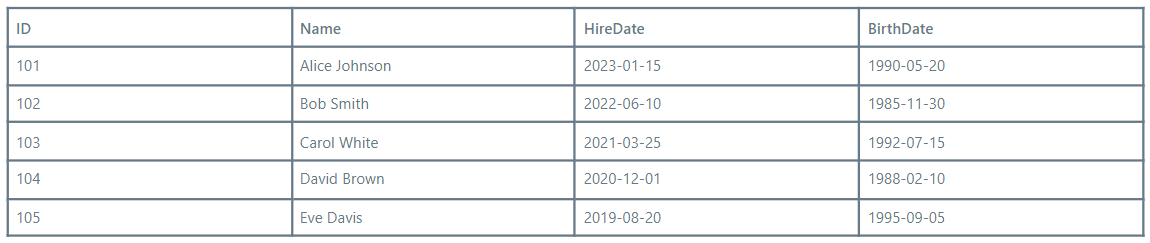
Get the current Date and Time.
Formula:
Now()
Output:
2024-12-02T20:29:11Z
Get todays date.
Formula:
Today()
Output:
2024-12-02
Add 30 days to the HireDate of Alice Johnson:
Formula:
DateAdd(DateValue(“2023-01-15”), 30, Days)
Output:
2023-02-14
Calculate the days between HireDate and BirthDate for Bob Smith:
Formula:
DateDiff(DateValue(“2022-06-10”), DateValue(“1985-11-30”), Days)
Output:
13384
To create a date from year, month, and day components:
Formula:
Date(2024, 12, 25)
Output:
2024-12-25
To format HireDate of Carol White as “Month Day, Year”:
Formula:
Text(DateValue(“2021-03-25”), “MMMM DD, YYYY”)
Output:
March 25, 2021
Some example uses are:
- Scheduling: Get future dates for appointments.
- Age Calculation: Calculate the age of a person based on their birthdate.
- Date Formatting: Output dates in a “pretty” format.
- Time Tracking: Track the duration of tasks.
- Time Zones: Be very mindful of time zones when working with date and time values, this is a common issues that catches a lot of developers out.
- Formatting: Use the Text function to format dates and times for display purposes.