Valto — Keep ahead of tomorrow

News

Power Apps Filter Tutorial & Examples

Learn how to use the Filter function in Power Apps to retrieve specific records based on set criteria. This blog covers the basics of tables, delegation, and provides real-life examples to help you get started with filtering data in your apps.

PowerApps
Published
20 January 2025
Power Apps Filter Tutorial and Examples

Power Apps Filter Tutorial & Examples

The Filter function in Power Apps is a powerful tool that helps you find specific records in your data. It works across various environments like Canvas apps, Desktop flows, and Model-driven apps. By applying criteria, you can easily filter data without modifying the original dataset.

In this post, we’ll explore how the Filter function works, explain the concept of delegation, and provide real-life examples using a sample SharePoint list. This will help you get started with filtering data effectively in your own Power Apps projects. Let’s dive in!

What is the filter function?

The Filter function in Power Apps is used to find records in a table based on specified criteria provided in the filter.

This applies to Canvas apps, Desktop flows, Model-driven apps, Power Pages, Power Platform CLI.

So what is a Table?

Tables are values in Power Apps, similar to strings or numbers. Tables can be derived from external data sources (such as Dataverse, SQL or SharePoint) or as a collection created within the app.

Tables can be passed to and returned from numerous functions, such as filter, within a power app to return filtered result sets without modifying the original table.

When using these functions the developer needs to be aware of delegation challenges.

power apps filter tutorial
Power Apps Filter Tutorial and Examples

What is Delegation?

Delegation in Power Apps is important to understand from a system behavior and performance basis. In simple terms when a request to populate a filtered table from a data source's is made and this is executed and returns filtered results, this is known as delegation (the request for data was delegated to the external data source). Its key to understand not all data sources support all query features; for example, Dataverse supports the 'in' operator, but Excel does not. Thankfully Microsoft provide us a handy list of data sources and function delegation limitations. If a query is non-delegable, Power Apps processes only the first 500 records (up to 2,000 if updated in the app settings), which can lead to inaccurate results for large datasets. As such non-delegable queries should only be used on datasets you know are going to be small (under 500) - however in my estimation the best practise would be to understand and work within these limitations and ensure you use delegable data sources and functions through out the build of your applications where possible and heed and fix the delegation warnings shown within the editor.

sharepoint list

How does the filter function work?

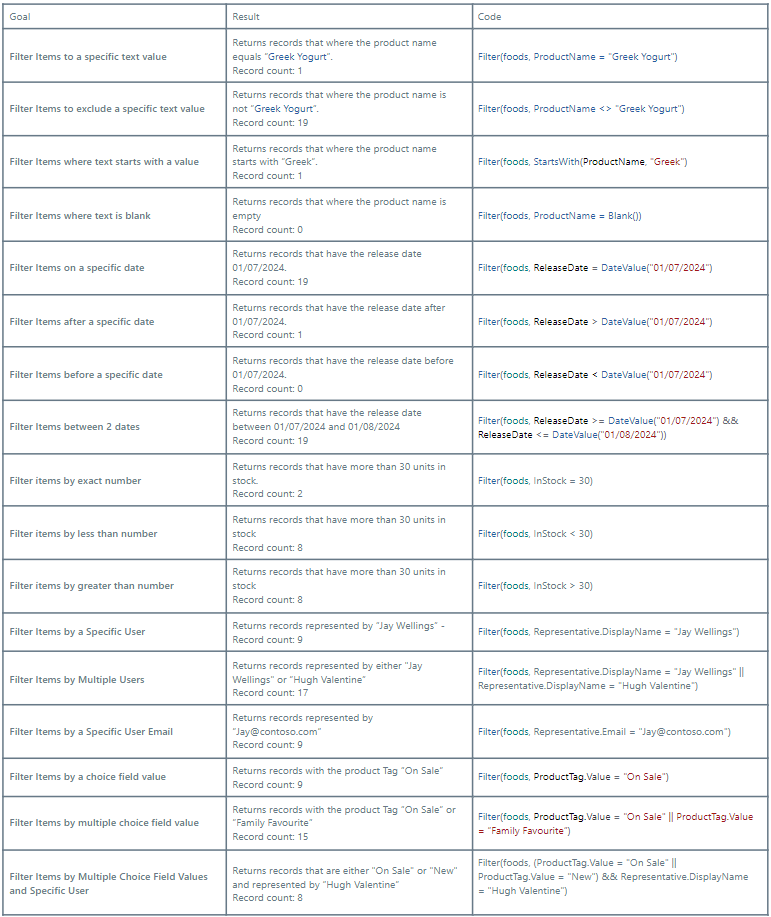
The Syntax / Structure of the Filter function is described as such: Filter(Table*, Formula1 [, *Formula2*, ... ] ) Table - Required. Table to search. Formula(s) - Required. The formula by which each record of the table is evaluated. The function returns all records that result in true. You can reference columns within the table. If you supply more than one formula, the results of all formulas are combined with the And function. However if you are like me you just glazed over the above and you want to see the real life examples. So lets get to it. We will be using the following dataset will be derived from a SharePoint list named “foods”. Hopefully this will give you a good jumping off point to using the Filter function in Power Apps.

Power Apps Filter Tutorial & Examples – Our Expert Says

Mastering the Filter function is a game-changer for any Power Apps developer. It allows you to streamline your app by displaying only the relevant data, making the user experience smoother and more efficient.

However, it’s crucial to understand delegation to avoid performance issues with large datasets. By sticking to delegable functions and data sources, you can ensure your app runs efficiently, even with complex filters.

Always keep an eye on delegation warnings, and work within these limits for optimal results. The Filter function is a powerful tool, but like any tool, it’s most effective when used correctly.

Trusted by Leading Brands

“We work with organisations across many sectors of different shapes and sizes from 10 to 100,000 employees.”

Contact Form

Contact our team today!

Talk to our team

Contact Us

Topics
Share this

Related reading

NewsMicrosoft 365

Dynamics 365 vs Model Driven Power Apps

Explore how SMEs can use Microsoft Model-Driven Apps to create affordable, custom CRM-like systems. Learn how to manage customer data, track sales, automate tasks, and access powerful reporting—without the high cost of Dynamics 365.

22 January 2025

NewsPowerApps

Power Apps vs. Power Automate

Explore the differences between Power Apps and Power Automate and learn how combining them can deliver powerful, low-code solutions for businesses. Discover how these tools work together to streamline processes and improve efficiency.

21 January 2025

NewsPowerApps

Using The UpdateContext Function In Power Apps

Discover how to efficiently use the UpdateContext function in Power Apps to manage context variables, optimise memory usage, and enhance app performance. Learn best practices and practical examples for Canvas Apps.

21 January 2025