Valto — Keep ahead of tomorrow

News

Power Apps Search Function Tutorial

Learn how to use the Search function in Power Apps with examples and tips for optimal performance. Discover how to filter data, create dynamic search bars, and enhance user experience in your apps.

PowerApps
Published
20 January 2025

Power Apps Search Function Tutorial

Power Apps provides powerful functionality for building dynamic applications with custom search capabilities. One of the key features for making your apps more interactive and user-friendly is the Search function.

With it, users can filter records based on partial matches or specific keywords, enabling them to quickly locate relevant data.

In this blog, we’ll explore how to use the Search function in Power Apps, showcasing practical examples to help you understand its syntax and functionality.

What is the Search Function?

The Search function in Power Apps is useful for filtering records based on partial matches or keywords. The function runs against a Table type and filters to specific records which can then be used in your application.

Syntax of the Search Function

The syntax of the Search function is as follows:

  • Search(Table, SearchString, Column1 [, Column2, …])
  • Table: The data source where the records will be searched.
  • SearchString: The string to search for within the specified columns, if this is empty then all records are returned.
  • Columns: The columns to search against, requires at least one column to be provided.
  • How to Use the Search Function

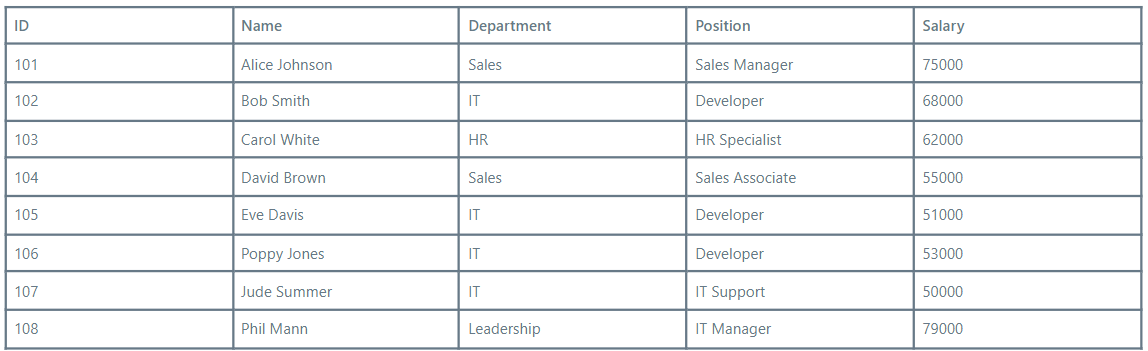
    For our examples using the search function, we will be working off this sample data set:

Example 1: Basic Usage

If you have a table named Employees and you want to find records where the Name contains the value “Smith”, run this function:

Formula:

Search(Employees, “Smith”, “Name”)
Output:

Example 2: Searching Multiple Columns

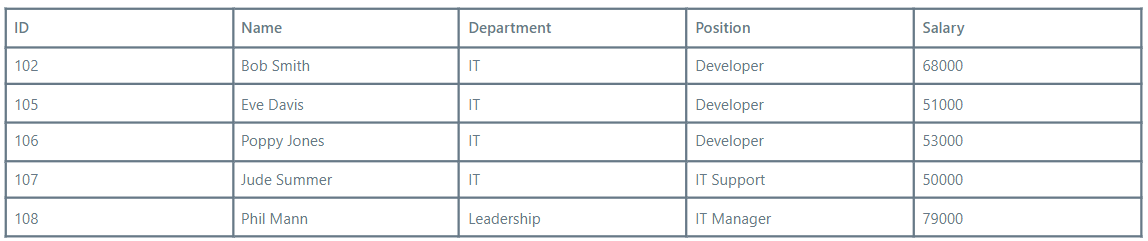
You can also search within multiple columns. For example, to find records where the Position or Department contains the string “IT” as a partial or full match:

Formula:

Search(Employees, “IT”, “Position”, “Department”)
Output:

Practical Applications

Some use cases for the Search function are:

  • Dynamic Search Bars: Implement search bars that filter data in real-time based on user input.
  • Data Filtering: Quickly filter large datasets to find relevant records.
  • User-Friendly Interfaces: Enhance user experience by allowing partial matches and keyword searches.
  • Tips for Using Search Function

  • Performance: As the Search function evaluates each record, this can be a expensive function to use with large datasets.
  • Delegation: Understand delegation limits of your data and how this may impact behavior of your system when using the search function. Use the inbuilt tooling to help identify these issues when they arise.
  • power apps search function data sample

    Power Apps Search Function Tutorial - Our Expert Says

    While the Search function is a fantastic tool for quickly finding data within your apps, it's important to use it strategically, especially when dealing with large datasets. If you're working with extensive data, keep performance in mind and consider using other options like delegation to improve efficiency. Always test your apps thoroughly to ensure they perform well even with large sets of records, and be mindful of delegation warnings that can impact functionality. A well-optimized search experience will not only make your app more responsive but also greatly enhance user satisfaction

    Trusted by Leading Brands

    “We work with organisations across many sectors of different shapes and sizes from 10 to 100,000 employees.”

    Contact Form

    Contact our team today!

    Talk to our team

    Contact Us

    Topics
    Share this

    Related reading

    NewsMicrosoft 365

    Dynamics 365 vs Model Driven Power Apps

    Explore how SMEs can use Microsoft Model-Driven Apps to create affordable, custom CRM-like systems. Learn how to manage customer data, track sales, automate tasks, and access powerful reporting—without the high cost of Dynamics 365.

    22 January 2025

    NewsPowerApps

    Power Apps vs. Power Automate

    Explore the differences between Power Apps and Power Automate and learn how combining them can deliver powerful, low-code solutions for businesses. Discover how these tools work together to streamline processes and improve efficiency.

    21 January 2025

    NewsPowerApps

    Using The UpdateContext Function In Power Apps

    Discover how to efficiently use the UpdateContext function in Power Apps to manage context variables, optimise memory usage, and enhance app performance. Learn best practices and practical examples for Canvas Apps.

    21 January 2025